PAGE FIELD CONFIGURATION:
It enables the user:
· To configure certain properties of pages and fields of classic pages based on their business requirements
· To define multiple configuration for a component based on different user roles or user list.
· Reduces cost and impact associated with customisation and upgrades.
Using this feature a user can:
· hide a field/page
· change label of a field
· add default value to a field
· make the field/page read only
· mark the field as mandatory
· permits the user to verify the configuration against the underlying page metadata and flag out if any errors exist.
'Page and Field Configurator' leverages Event Mapping framework behind the scenes!
Requirement:
1) Hide the link business unit and Status
2) Change the label of Job Title
3) Gray out the reg/temp field
4) Default the value of Medical Checkup Required as 'Y'
5) Default the value of Union Code and Description
6) Make the 'Evaluation Criteria' Page as Display Only
7) Hide the 'Market pay Match' Page
8) Above configuration should only be for GBSHR
8) Above configuration should only be for GBSHR
Steps to follow:
Navigate to: Enterprise Components > Page and Field Configuration > Page and Field Configurator
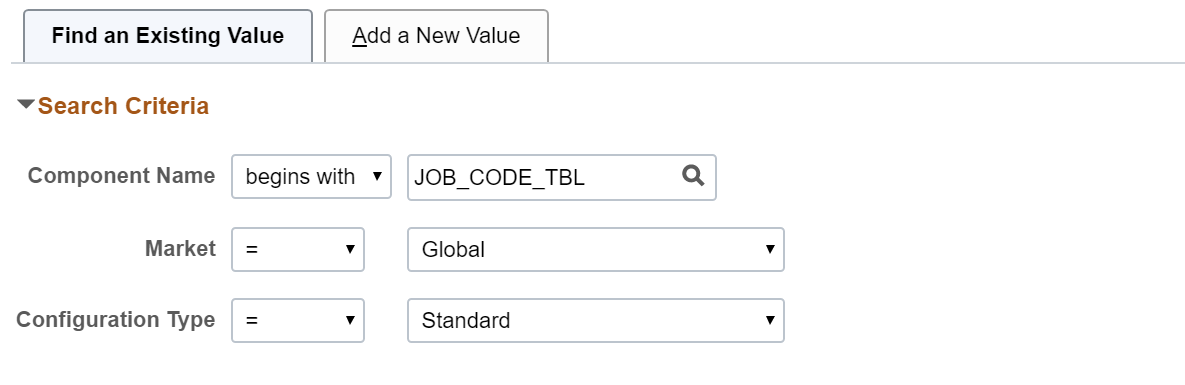
Step 1) Add the component JOB_CODE_TBL with standard configuration


For the requirement where you want customizations to be visible to 'GBSHR' setid, create the criteria. (Note: You can only create criteria for Level 0 fields)


Once the configuration done click on the validate configuration button.
Step 3) Page and field configuration can be achieve based on security by selecting user list. The changes will be shown only for users in the selected list
Based on level selected
1) Header Level – security will be applicable for all sequence.
2) Sequence Level – we can provide security for each sequence defined in the criteria tab

Based on Applies To selected
· All user with Exceptions –Change visible to all users except for the list in Excluded User grid
· Selected Role With Exceptions – Changes visible to all users tagged to the mentioned role and not to users in Excluded user grid
· Selected User – Changes visible to all users provided in the list
Step 4) Go to “Map to Portal Registry” tab
Select the navigation, where you want the customization.

Once we push the 'Apply Configuration' button, we will now notice a new column 'Review/Edit Mapping' as shown in the image below. If we click on the 'Review/Edit Mapping' hyperlink, we will be taken to the corresponding Event Mapping configuration associated with the content reference of this component.


After the 'Map to Portal Registry' step is completed, we can now see the configuration take effect on the page.

RESULTS:
For SETID: 'IRSHR' there is no customization effective

For SETID: 'GBSHR' following customizations are there.
Business unit and status link is hidden, job title label is changed, reg/temp is display only


Page Evaluation Criteria is Display Only and there is no tab for Market pay Match page

When we go on Add Mode, default values will be set.

Limitations:
1) Cannot create criteria from Level 1,2 and 3
2) If we have same fields in different pages of same component, then customization done once will be visible on all the pages. We can’t have different set of customizations on same field for different page.
3) Cannot add fields on the page

No comments:
Post a Comment