Friday, 19 June 2020

Related Content: Basics


What is Related Content Service Framework?

The PeopleSoft Related Content Framework enables to link application pages with contextually relevant collaborative content. In simple terms, Related Content Service Framework allows extension of a transaction without customizing the component, also allows the user to perform more actions, tasks, and to see related information without leaving the transaction. Brings additional, supplemental information into the transaction in a bottom or side frame. Related content services are ideal for the scenarios when the user wants to access two pages at same time, or some display only information like Help instructions etc.,

Related content services can be any collaborative, analytical, or informational content that is useful for completing business tasks. Related content services include any content such as PeopleSoft components; pagelets or tiles that are offered as services to be consumed by applications; or related discussion forums, wiki pages, or links. Related content services can be configured within the same database, among multiple PeopleSoft databases, and between a PeopleSoft database and external sources.

Related Content allows you to display associated information on the same page. This tool will split the screen at the bottom (right side, new window) to display additional information for the page you are working on.

Limitations 

  • A  component must be registered to select it to assign related content.
  • The related content menu and the Related Content frame will not be displayed on pages that have the pagebar option set to disabled.
  • The related content menu and the Related Content frame will not be displayed for modal or secondary pages.
  • If the modal or secondary page has a related actions menu or glyph on a field that has a service targeted to open in Target Content, the frame will be opened in a new window instead.
  • The related content menus, the Related Content frame, and related actions menus and links will not be displayed for content that has been produced for WSRP consumption. For example, the Related Actions menu will not be displayed on a pivot grid that has been produced as WSRP content.
  • The Related Content frame configured for a classic page will not be displayed when that page is rendered inside any fluid wrapper, such as in a fluid activity guide or in the fluid master/detail container.

Types of services that can be created

  • Application class: when Peoplecode needs to be run to execute business logic.
  • Non-PeopleSoft service type accesses any non-PeopleSoft pages, external content, or services.
  • PeopleSoft Component: the component can be from the local PeopleSoft system or from a remote PeopleSoft system.  
  • Embeddable Pagelet: is used to define a PeopleSoft Pagelet wizard created embeddable pagelet to be used as a service. 
  • OBIEE (Oracle Business Intelligence Enterprise Edition) Pagelet: is used to define a PeopleSoft Pagelet wizard created OBIEE data source-based pagelet to be used as a service.  
  • PeopleSoft Query: is used to access PeopleSoft Query definitions. The query results can also be filtered based on the query definition and the parameters that it requires.  
  • PeopleSoft Script: can be used in situations in which an iScript has been used to develop the application functionality based on PeopleSoft data or non-PeopleSoft data, such as stock quotes or weather information.


Sample Example:
  • Display Employee Document Component on Maternity Page related content.
1Development Process of the Related Content Service

A. Define Related Content Service.

To define a related Content Service, navigate to
Main Menu -> People Tools -> Portal -> Related Content Service -> Define Related Service


B.   Manage Related Service Definition.

After assigning the related service definition to a PeopleSoft component, user can configure the related content service and related actions. Service parameters, security, layout etc., can be defined.
Main Menu > People Tools > Portal > Related Content Service > Manage Related Content Service  
Page Down you will see Assign Related Content to an Application Page 

Add Service, and find the navigation where related content needs to be used --> Configure Related Content Page.


       Open Content Reference of the employee document component [component that you want to show when clicking Related Content dropdown] and add following information


       Navigation: PeopleTools > Portal> structure and content


      Go to content reference attributes groupbox .
      Name:                RCF_SERVICE_PARAMETER
      Attribute Values: EMPLID, EmployeeId; EMPL_RCD, Employee Record

      When you assign a content reference as an anonymous service, the system automatically defines service parameters for the components that provide either a valid search record or contextual record. You can manually define the RCF_SERVICE_PARAMETER attribute on the Content Ref Administration page for any content reference, such as for pagelets, iScripts, or for other content references that do not have a valid search record. If this RCF_SERVICE_PARAMETER attribute exists, the system automatically uses the attribute values as the service parameters for the content reference.

      The RCF_SERVICE_PARAMETER attribute overrides the default behavior of component-based URLs. The system will not retrieve the service parameters from a valid search record or contextual record, rather the system supplants any search record parameters with the parameters included in the Attribute Value field.


The related content service will be displayed in the component to which it is attached to.


Data Masking Using Page Field Configurator


Important requirements:
1)      You should have PFC Data Masking Admin role [If you don’t have this role, you won’t be able to see configuration type: Mask]
2)      PeopleTools 8.57.11 or higher

To know basics of Page Field Configurator: Page field configuration

Step 1: Define Mask Profiles
Navigation: Enterprise Components > Page and Field Configuration > Define Mask Profiles
While a few Mask Profiles come delivered, you are free to define new ones based on your requirements. Oracle delivers four types of mask profiles


Step 2: Define Field Groups
Navigation: Enterprise Components > Page and Field Configuration > Define Field Groups
Field Groups allow grouping of fields with similar masking requirements.  The mask profile assigned to the field group serves as the default for the field.  


Step3: Configuring Data Masking using PFC
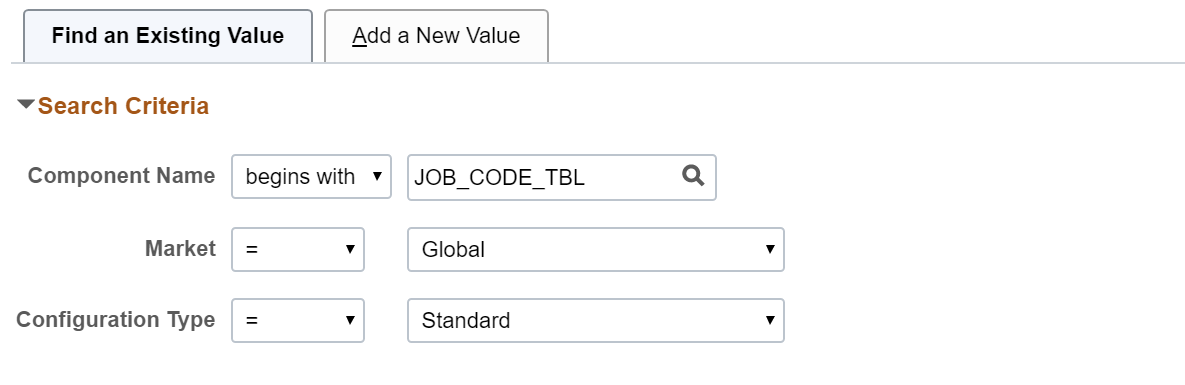
Navigation: Enterprise Components > Page and Field Configuration > Page and Field Configurator
When we now go to PFC, we can see two type of configuration 


When we add a new component, we get options for the configuration.


Examples:
Standard Configuration All other non-masking configurations use a configuration type of Standard.

Masking Configuration Apply Additively is selected by default which allows multiple sequences to be executed if the criteria are satisfied.


·       The EFFDT field is masked Year Mask by default, as it was added in the Field Group.
·       Job Code is not added in any Field Group, hence, is FULL Mask by default.

Step4: User List
Define the list of users to whom the configuration needs to be applied using the User List page.

Only selected users to see the configurations. In this example, the Benefits Administrator should see unmasked data and is excluded from the configuration using the User List tab.


Step5:
Map the configurations to the corresponding portal registry entries using the Map Configuration to Portal Registry page.

Once the configuration is complete, click on Apply Configuration.


MASKING RESULTS:
Included userid: Test( and user with PFC Admin role)
Job Code is Full Masked
Effective Date Year’s is Masked

Excluded users - Benefit Administrator
There is no masking.

Data Masking using Page and Field Configurator is available now in PeopleSoft HCM 9.2 Image 33 and will soon be available in PeopleSoft Financials and Campus Solutions. 

Tuesday, 9 June 2020

Page Field Configurator


PAGE FIELD CONFIGURATION:
It enables the user:
·       To configure certain properties of pages and fields of classic pages based on their business requirements
·       To define multiple configuration for a component based on different user roles or user list.  
·       Reduces cost and impact associated with customisation and upgrades.

Using this feature a user can:
·       hide a field/page
·       change label of a field
·       add default value to a field
·       make the field/page read only
·       mark the field as mandatory
·       permits the user to verify the configuration against the underlying page metadata and flag out if any errors exist.

'Page and Field Configurator' leverages Event Mapping framework behind the scenes!

Requirement: 
1) Hide the link business unit and Status
2) Change the label of Job Title
3) Gray out the reg/temp field
4) Default the value of Medical Checkup Required as 'Y'
5) Default the value of Union Code and Description
6) Make the 'Evaluation Criteria' Page as Display Only
7) Hide the 'Market pay Match' Page
8) Above configuration should only be for GBSHR

Steps to follow:

Navigate to: Enterprise Components > Page and Field Configuration > Page and Field Configurator
Step 1)      Add the component JOB_CODE_TBL with standard configuration

     Step 2) On Page Configuration tab, Click on Select Fields and add your customization.


         For the requirement where you want customizations to be visible to 'GBSHR' setid, create the             criteria. (Note: You can only create criteria for Level 0 fields)


        For page visibility configuration, choose page from the prompt and add your customizations.


              Once the configuration done click on the validate configuration button.

             Step 3) Page and field configuration can be achieve based on security by selecting user list. The                     changes will be shown only for users in the selected list
       Based on level selected
              1)      Header Level – security will be applicable for all sequence.
              2)      Sequence Level – we can provide security for each sequence defined in the             criteria tab

Based on Applies To selected
·       All user with Exceptions –Change visible to all users except for the list in Excluded User grid
·       Selected Role With Exceptions – Changes visible to all users tagged to the mentioned role and not to users in Excluded user grid
·       Selected User – Changes visible to all users provided in the list

Step 4) Go to “Map to Portal Registry” tab
Select the navigation, where you want the customization.

Once we push the 'Apply Configuration' button, we will now notice a new column 'Review/Edit Mapping' as shown in the image below. If we click on the 'Review/Edit Mapping' hyperlink, we will be taken to the corresponding Event Mapping configuration associated with the content reference of this component.


After the 'Map to Portal Registry' step is completed, we can now see the configuration take effect on the page.
RESULTS:
For SETID: 'IRSHR' there is no customization effective


For SETID: 'GBSHR' following customizations are there.

Business unit and status link is hidden, job title label is changed, reg/temp is display only


Page Evaluation Criteria is Display Only and there is no tab for Market pay Match page

When we go on Add Mode, default values will be set.


Limitations:
1)      Cannot create criteria from Level 1,2 and 3
2)      If we have same fields in different pages of same component, then customization done once will be visible on all the pages. We can’t have different set of customizations on same field for different page.
3)      Cannot add fields on the page